New Videos in the Silhouette U Library (September 2026)

What's new in September? Five videos across four different setups. Silhouette users get the last piece of the V5 tool bar set plus a firmware walkthrough that takes the fear out of updating, xTool Omni owners get every setting on the right panel explained, DTF makers find out that a misspelled name does not have to mean a ruined shirt, and everyone gets a design technique for turning flat artwork into faux embroidery and chunky knit using AI.

Silhouette Studio V5 Left Tool Bar Deep Dive

This finishes the V5 tool bar set. The right sidebar holds your design tools; the left tool bar is where your drawing tools live, and Melissa goes down it one at a time. You will find out why the shape icon keeps changing on you, why clicking the middle of a shape will not select it, and how to make a triangle when there is no triangle tool. Plus what convert to path really costs you, why text has to start from the left tool bar, why you should uncheck auto apply before touching the knife, and what simplify does to a traced file carrying hundreds of nodes. The order is different in V5, but the tools are the same as V4, so this applies either way.

Watch Video

How to Update Silhouette CAMEO 5 or 5 Alpha Firmware

Firmware updates make people nervous, and the reason is that nothing on screen reassures you while it is happening. Melissa clears that up. Worth knowing first: Silhouette America removed standalone firmware downloads a few years ago, so the only way to get one now is to be offered it inside the software, and not every version will prompt you. You will see the connection check to run first, where the notice lives in the Send panel, the red warning that looks alarming and what it actually says, and the moment your machine shuts itself off and powers back on by itself, which is normal.

Watch Video

xTool Studio UV Printer Settings for Omni: Right Panel Deep Dive

The right panel changes depending on which machine you have connected, so this one is specifically the Omni, though roughly 95 percent applies to the single and the UV DT too. Melissa untangles Device Health, Maintenance and Device Control, which look like one thing and are actually three. Then the job settings: platen modes, material presets and why the recommended white layer counts on wood versus clear acrylic do not make sense, all four ink modes including where flat raised is hiding, and running two different ink modes in the same work area. Plus the menu behind the process button that most people never open, including choke, curing power and high ink dropping.


Watch Video

How to Remove a DTF Transfer from a Shirt

Misspelled name, pressed crooked, wrong side of the chest. It happens to everyone, and it does not have to mean a ruined shirt. Melissa takes a full transfer off a white shirt start to finish using a remover made specifically for direct to film rather than a general HTV remover. You start from the back, not the front, and there is a step to take first if anything is printed on the other side, because the solution soaks straight through. Thin areas lift on their own; the thick dense areas need coaxing, and you will see exactly how much.

Watch Video

How to Turn PNGs into Faux Embroidery and Knit Designs

Take a PNG you already made and give it a completely different finish. One design in this video started flat and now looks knitted; another looks like an embroidered patch, and because it was UV printed with texture it has real physical height and presses on like a regular patch. No embroidery machine anywhere. This is not asking AI to make you a patch, it is giving strategic instructions using real embroidery and knitting terminology on a design you created yourself. Melissa shares both full commands, shows why a stray red cut line in your original file will come through, compares the full command against a quick one-line follow-up, and finishes by setting one up for UV texture printing and one for DTF.

Watch Video

More Exclusive Member Benefits

1:1 Assistance icon

1:1 Assistance

  • Personalized 1:1 Chat Help with Melissa
  • Get your questions answered in real time
  • Regularly voted one of our members' favorite perks

Exclusive Assets / Libraries icon

Exclusive Assets / Libraries

  • Access to Exclusive Content & Calculators
  • New Videos Added to Video Library Monthly
  • Exclusive Members-Only Mini Guides
  • Monthly Coupon for Fonts & Designs (Pays for your membership!)

Fast Help & Savings icon

Fast Help & Savings

  • Access to Member Only Priority Inbox for Fast Help
  • Private Facebook Group Access
  • Member Only Deals at Retail Partners

More from Silhouette U

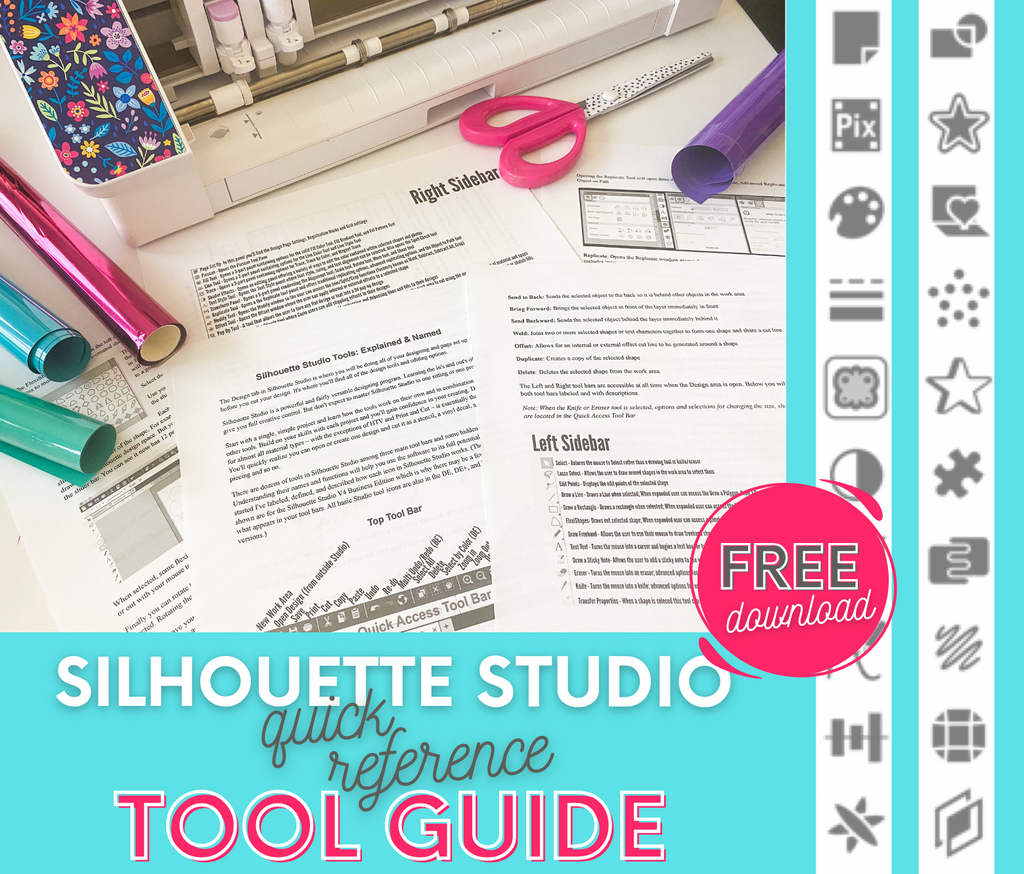
Get the Free Silhouette Studio Tool Guide

Get the Free Silhouette Studio Tool Guide

Download Now
Preview Every Video in Our Exclusive Library

Preview Every Video in Our Exclusive Library

Browse Video Tutorials
What's New at SIL U Blog

Shopping Cart

Your cart is currently empty.