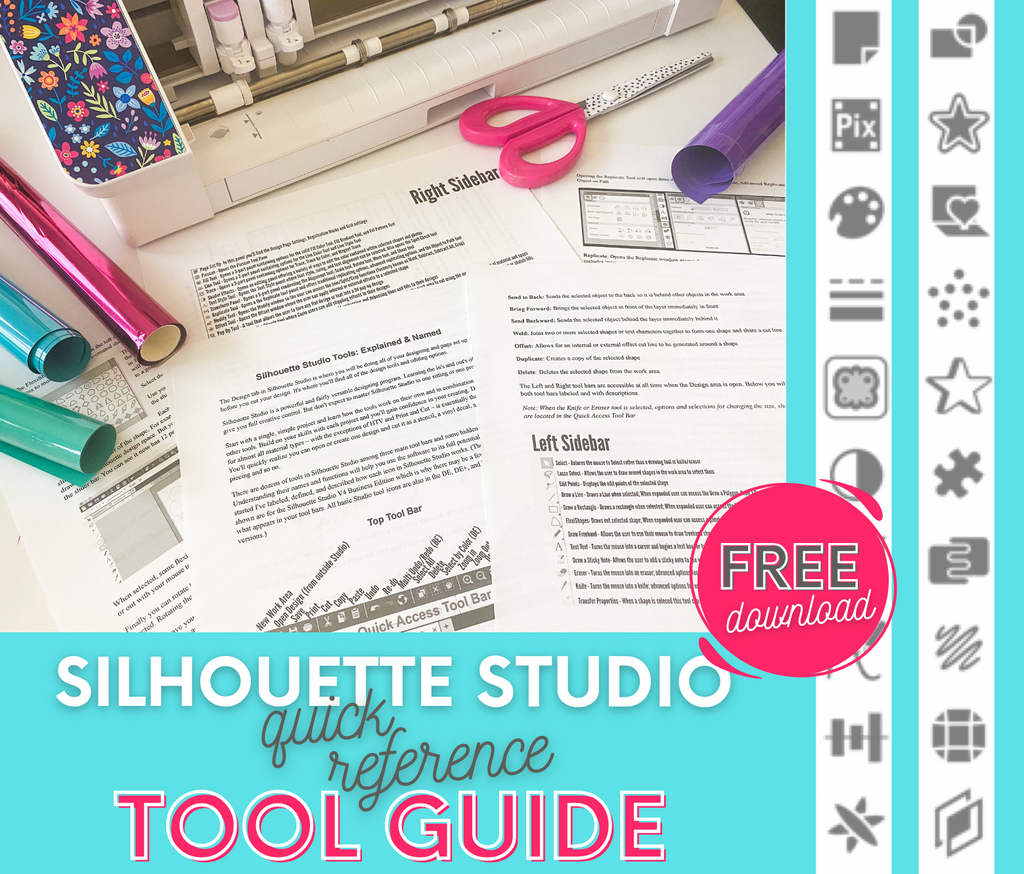


What is in the guide
It is a free printable quick reference guide. Every tool in xTool Studio is named, with a plain sentence on what it actually does, and the real icon next to it so you can match the page to what is on your screen.
It covers the top toolbar with an image selected and with text selected, the left sidebar, the image edit panel, the applications panel, the right panel for device and print settings, and the bottom bar.
A few things in there are worth knowing before they cost you a print. Reflect and Image mirror printing both flip your design, and using them together quietly cancels the mirror out. Several of the AI tools spend credits whether or not you like the result. The Shadow setting looks broken until you pick an actual shadow style.
Which machine it covers
This edition is built around the Dual O1 Omni in UV flatbed mode. Most of the software behaves the same way whatever is connected, so it is still useful with an Apparel Printer or a laser, but with a laser you will see a few tools that are not in the guide and a few of these will not appear. A laser edition is planned.
Print it and keep it next to you
It is laid out to print, so you can keep it beside your computer or open on a second screen while you work. There is no membership required and nothing to buy.
The guide tells you what each tool does. If you want to watch them being used, members can see every one of them in action in xTool Studio Top Toolbar Deep Dive, which walks the toolbar on the P2 and the Omni side by side. It is part two of a four part series on the software.